Importing and exporting data

STAT1003 – Statistical Techniques

Dr. Emi Tanaka

Australian National University

These slides are best viewed on a modern browser like Google Chrome on a desktop or laptop. Some interactive components may require some time to fully load.

Data file formats

  • Data are stored as a file, which points to a block of computer memory.
  • A file format signals a way to interpret the information stored in the computer memory.
  • A file with the extension “csv” (comma-separated values) uses a comma as a delimiter while “tsv” uses tabs as a delimiter.
data.csv
len, supp, dose
4.2, VC, 0.5
11.5, VC, 0.5
...

Reading and writing CSV files

File paths

  • Your file has to be in the right location to be read!
  • To point to the right location of the data , you may use
    • a relative path (e.g. data/data.csv) or
    • an absolute path (e.g. C:\\user/myproject/data.csv)

You should avoid using absolute path! Why?

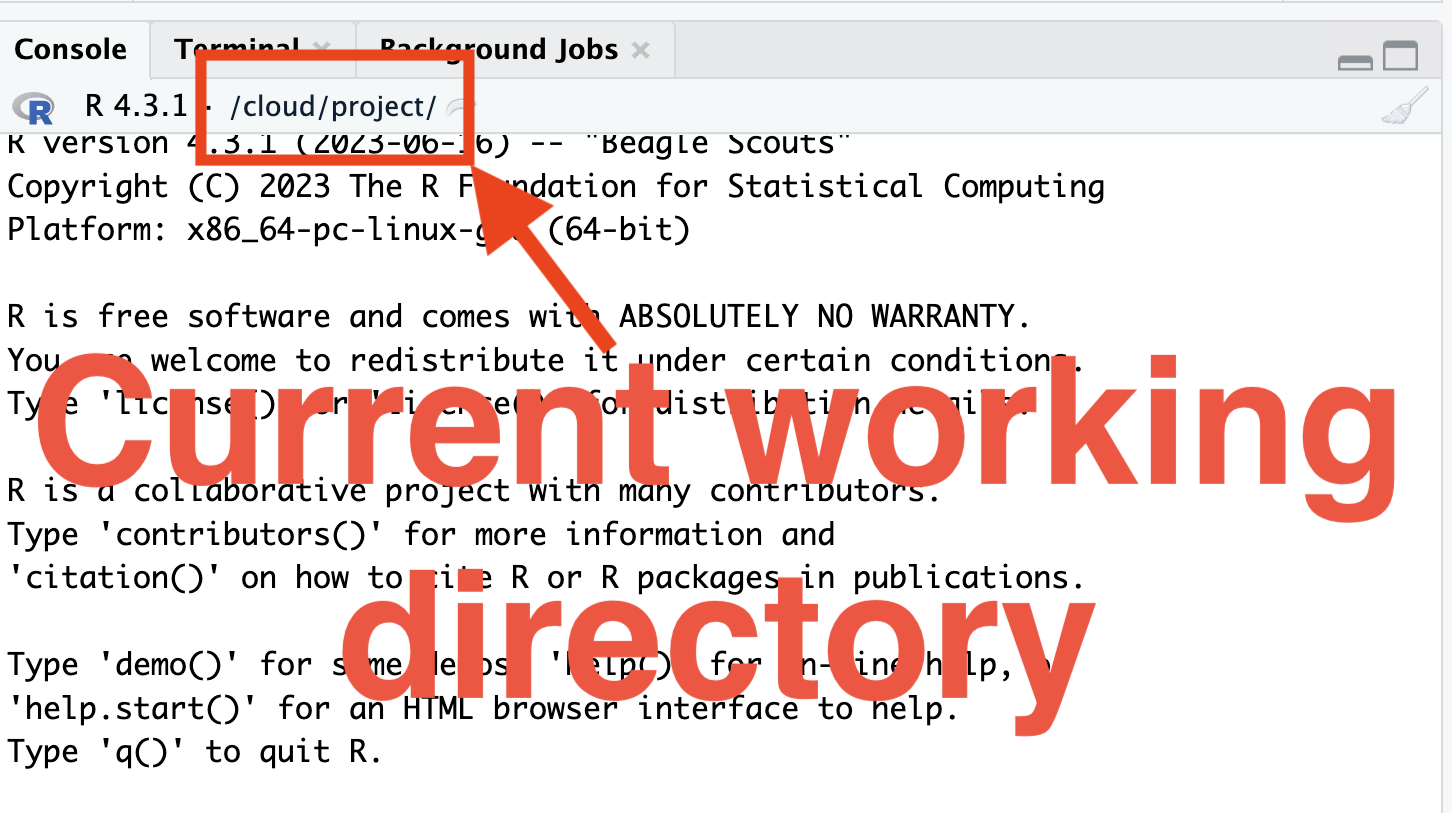
  • You can get and set the current path using getwd() and setwd(), respectively.

Folder structure

  • Your folder structure depends on the project, but it is generally a good idea to have:
    • a main project folder
    • Within the main project folder, a separate folder for:
      • data
      • code/script/analysis
      • report/paper/outputs.
  • Within RStudio, you can create a project file (with an .Rproj extension).
  • Double clicking on this .Rproj file launches RStudio Desktop with the current working directory set to the location of the project file.
  • You can create this project file by going to RStudio > File > New Project …

Binary formats

  • Data can also be stored as a binary format (e.g. .RData, .rda or rds).
  • .RData, .rda or rds saves R objects so you don’t need the data to be in a data.frame.
  • However, these formats are specific to R and thus not easily portable to other software.

Reading Excel sheets

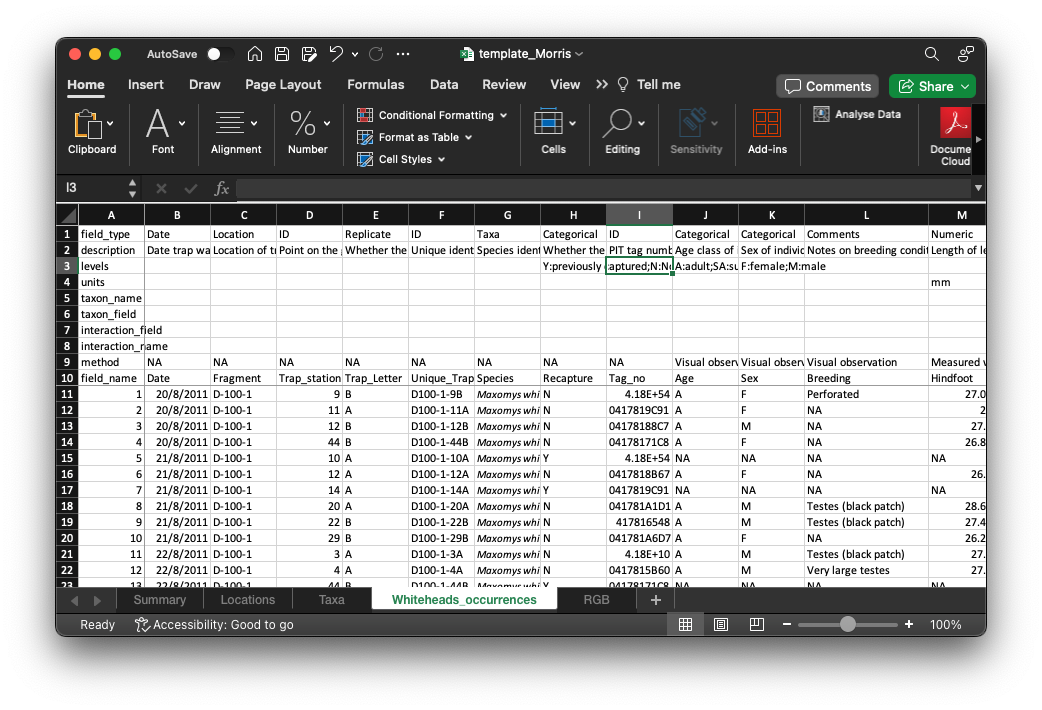
  • Data can also come in a propriety format (e.g. xls and xlsx) – these require special ways to open/view/read it.

data/template_Morris.xlsx
Importing through the GUI

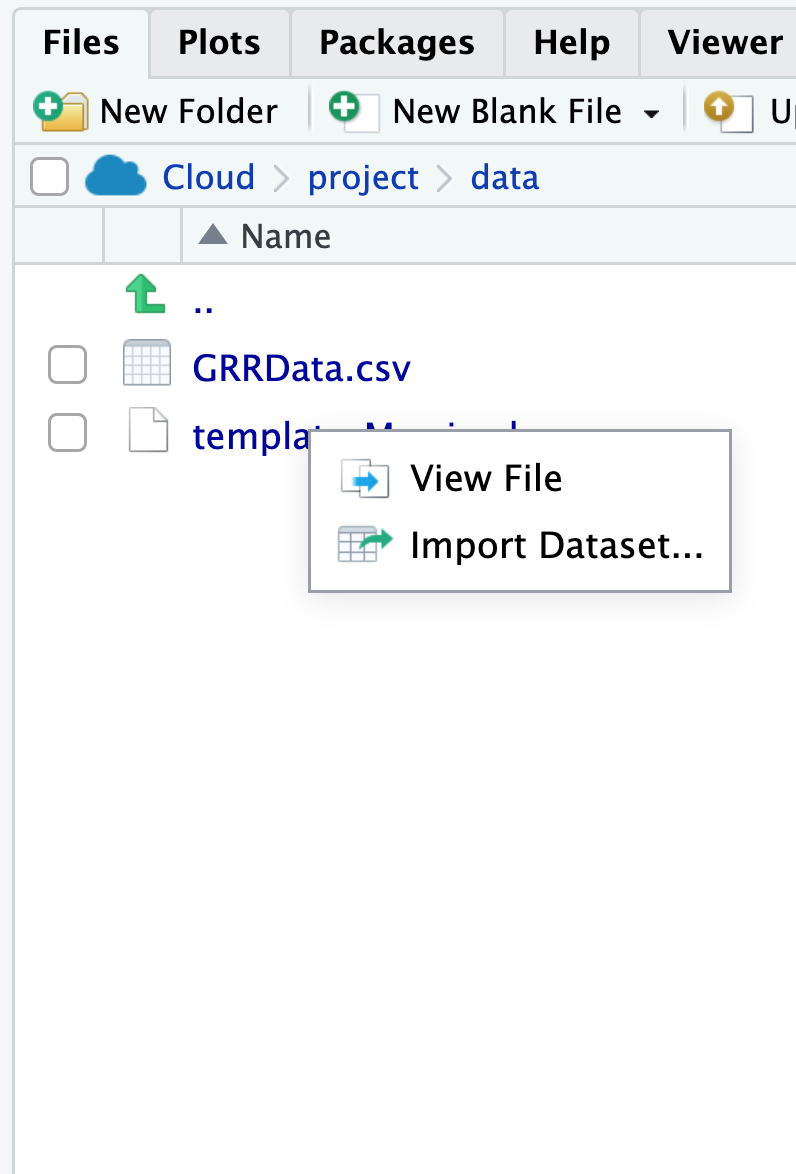
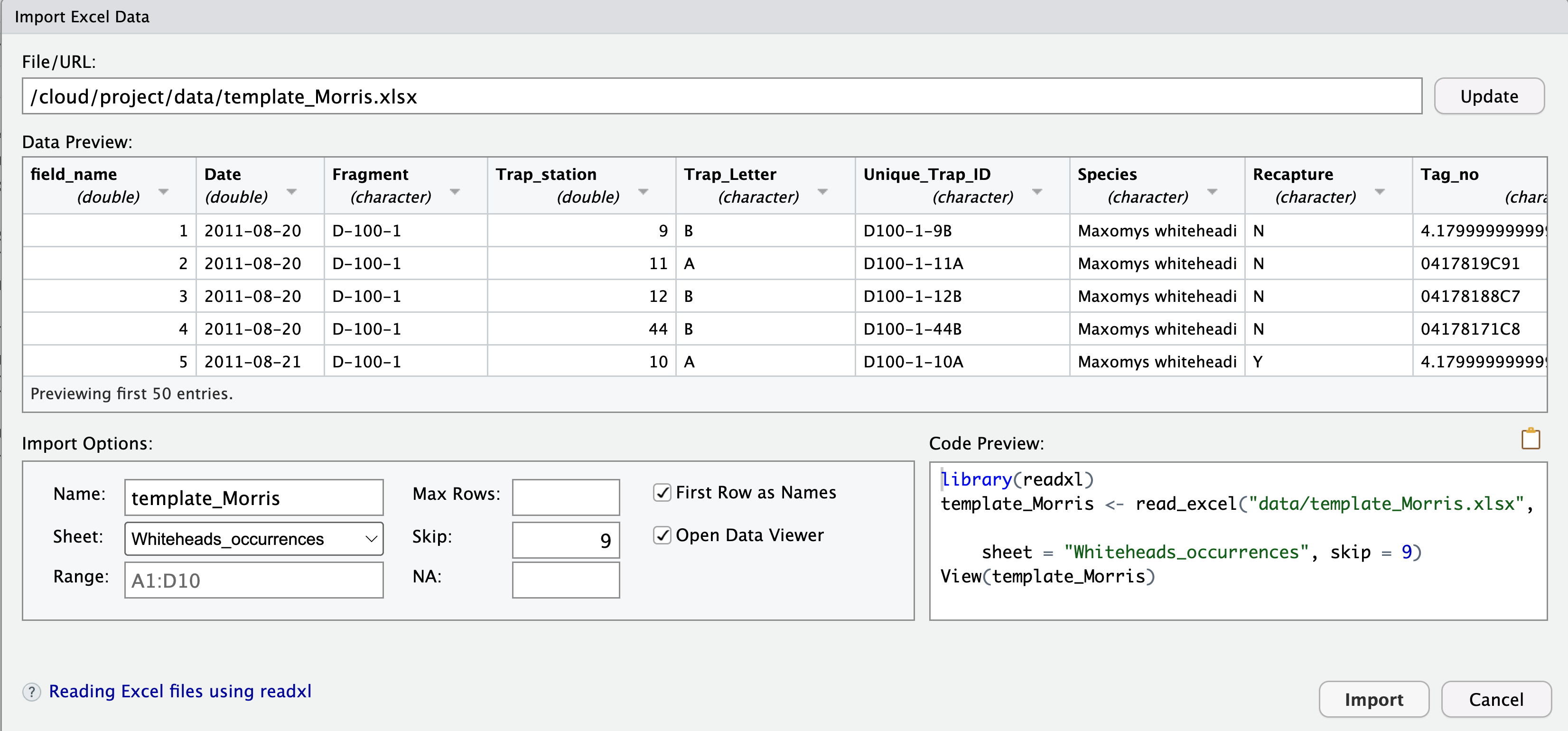
In RStudio Desktop, you can click on the file for importing via GUI.

Formatting or editing data

Unless you are responsible for entering the data, you should never modify the original, stored data (note: exceptions do apply).

  • For scientific integrity, any modification to the original data should be recorded in a reproducible manner (e.g. by programming in R!) so that you can trace the exact modifications.


Raw data Raw data Input data Input data Raw data->Input data Valid data Valid data Input data->Valid data

Summary

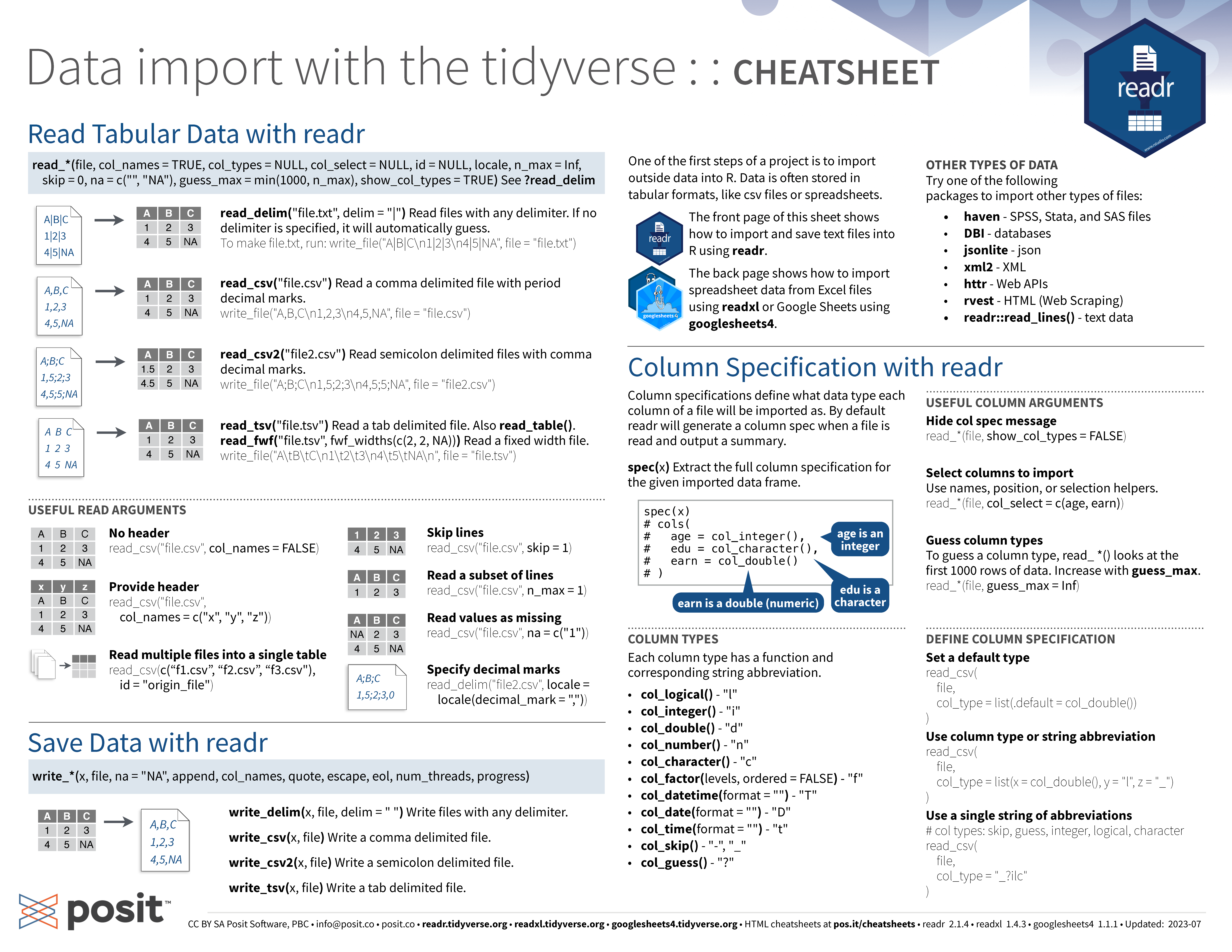
  • You can use readr::read_csv() and readr::write_csv() to read and write CSV files.
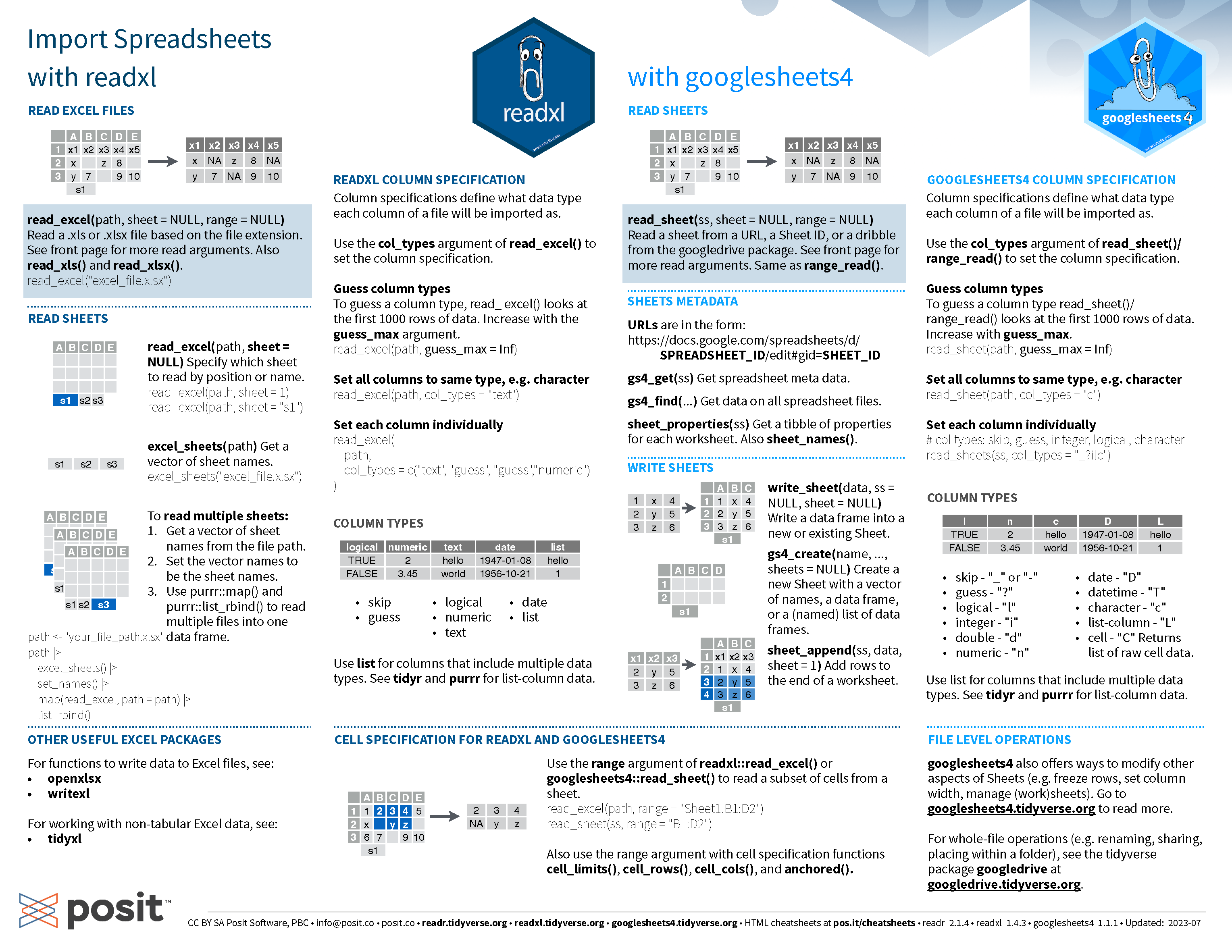
  • You can use readxl::read_xlsx() to read Excel files.
  • Save a single R object using saveRDS() (recommended) and multiple objects using save().
  • Load R objects using readRDS() or load().
  • In RStudio Desktop, you can click on the file for importing via GUI.
  • Set up R Projects and use relative path to data files.
  • Don’t ever modify the raw data!

Data import cheatsheet

Data Import Cheatsheet